
Connecting to the RIP Server
When Smart Print Controller (SPC) starts, it automatically:
-
Launches the RIP Server process (
HarlequinDirect.exe) -
Attempts to establish a connection to it
Expected behaviour
After launching SPC:
-
The RIP Server starts in the background
-
SPC attempts to connect automatically
-
The connection status icon (top-right of the SPC window) indicates the result
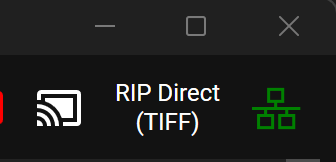
Connection status
-
🟢 Green → Connected and ready
-
🔴 Red → Not connected / error
Initial connection may take a short time (typically a few seconds). Wait for the status to update before taking action.
Startup sequence (simplified)
SPC starts
   ↓
HarlequinDirect.exe launched
   ↓
SPC attempts connection
   ↓
Status icon updates (green = success)
Troubleshooting connection issues
If the connection status does not turn green:
1. Restart the RIP Server
-
Click on the Support pane
-
Select the “Restart RIP Servers” button.
-
Wait for reconnection and check the status again.
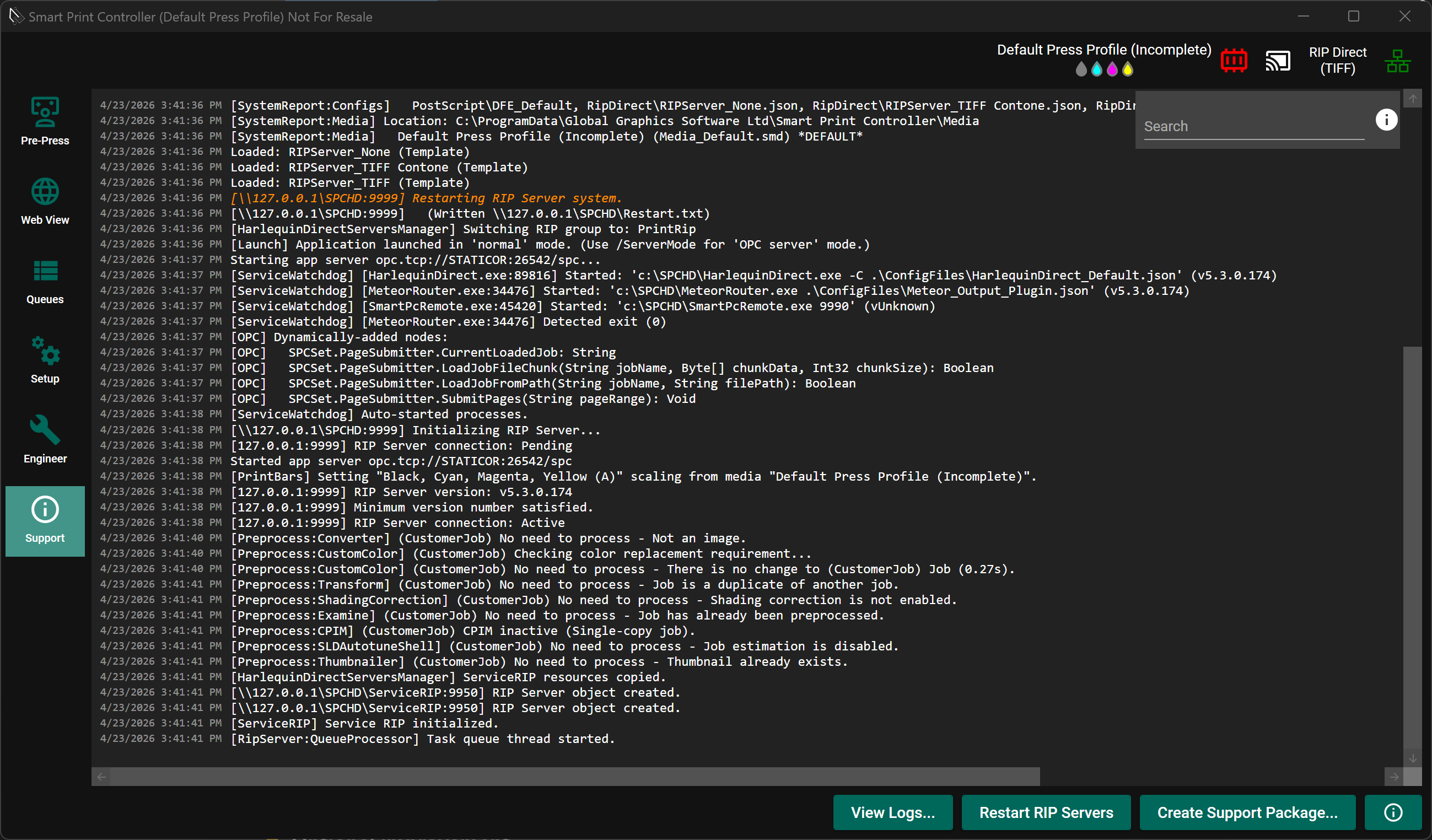
2. Check the RIP Server log
-
Open the same Support panel look for any issues.
Look for:
-
Startup errors
-
Port or file access issues
-
Licensing or configuration problems
3. Verify common issues
Check the following:
-
Another RIP Server process is running (
HarlequinDirect.exe) -
No firewall is blocking communication
-
Required shared folder is accessible
-
System resources are sufficient
4. Still not connected?
If the connection cannot be established after these checks:
-
Click the “Create Support Package”.
-
Contact your Helix representative and send the “Support Package”.