
Label Studio is used to work on a source pdf representing a one-up label to step it up into a frame for production.
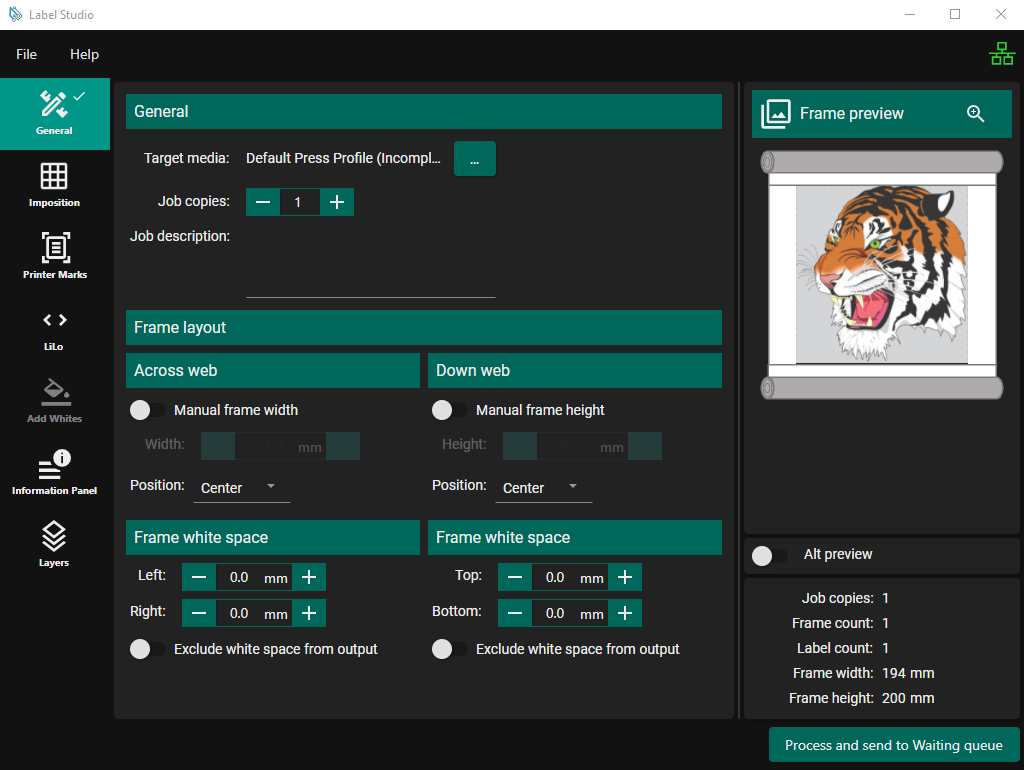
Options
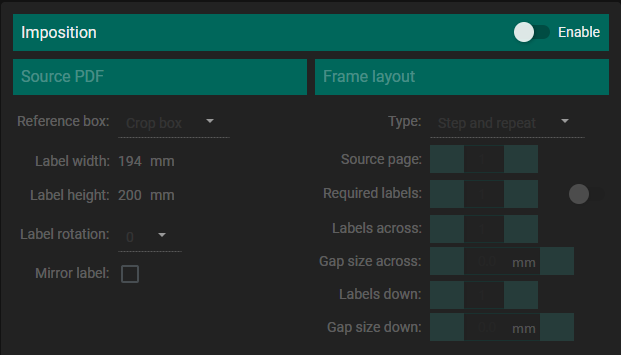
Some options will be applied to all frames such as Imposition and Printer Marks while others add pages such as LiLo and Information Panel.
Aside from the General Pane each of the panes need to be enabled for the option they represent to be applied.
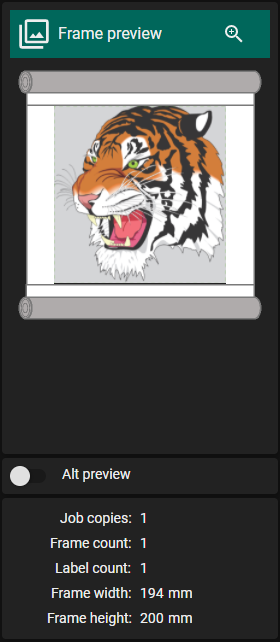
Frame Preview
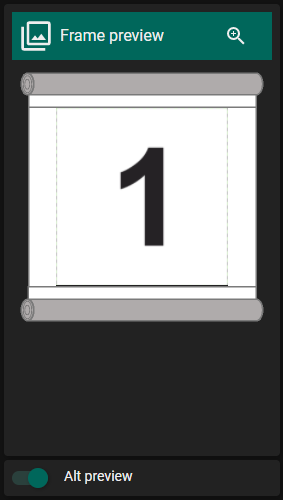
On the right hand side of the screen there is a Frame Preview section. There is a preview of the first frame of the output that will update as settings are changed.
The preview can be enlarged for a full screen view with a scrollable preview.
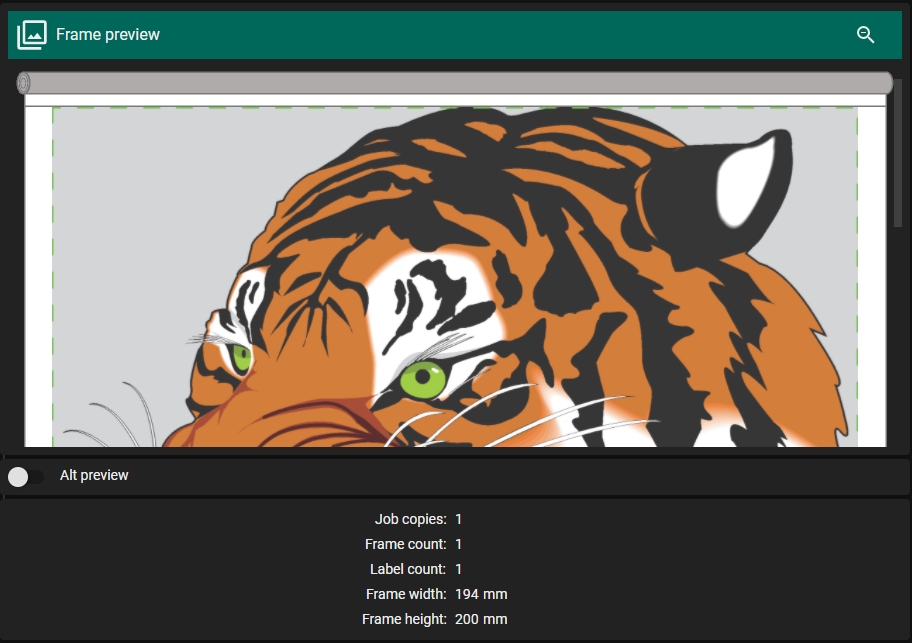
A dotted green outlines the visible area of the output frame however some settings may result in white space outside the visible area that will be printed.
An Alt Preview can be toggled that will show a simplified version of the page(s) on the frame with a black outline a number indicating which source page it is.
Processing the Job
The Process and Send to Waiting Queue button will first cause the input job with the options and settings that have been selected to be processed by the Studio Engine to create the output job. A progress dialog will show while the job is being processed.
The options and settings will be embedded in the job as a studio file to allow it be recognised as having been processed by the Studio Engine.
If the device has print bars vertical to the image the job will be rotated after being processed.
The created output job will then be added to the Waiting Queue and Label Studio will close.