
PDF Files

From Preflight Queue window, click 
Pages to Preflight
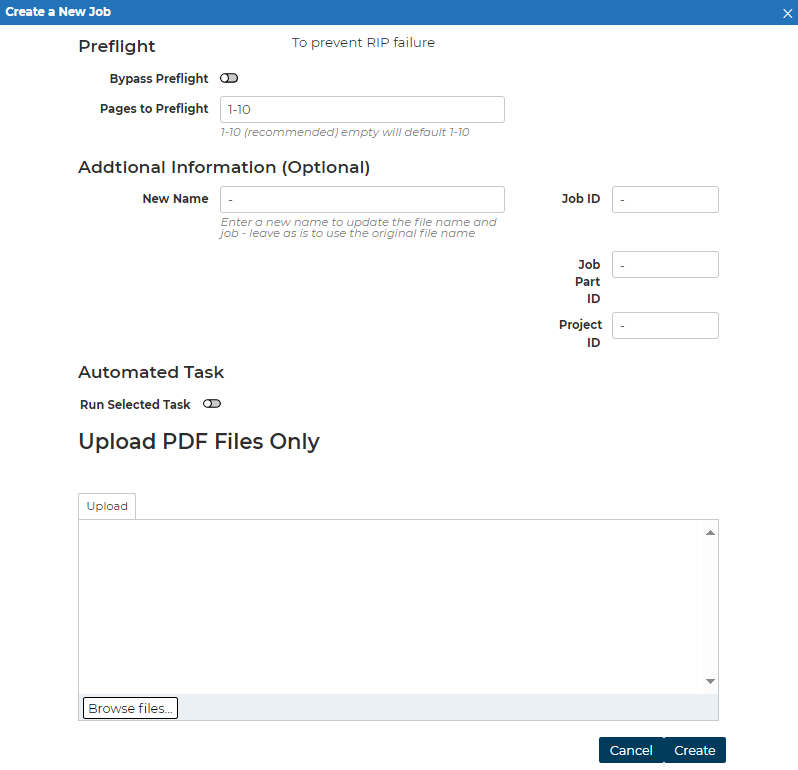
Bypass Preflight
-
You can select to bypass the Preflighting stage on Job(s).
You can set a range of up to 10 pages (1-10 by default) that will be preflighted.
-
This range is limited a maximum of 10 pages to prevent very large documents taking a very long time to process.
-
If there are fewer than 10 pages in the range, then only the page range specified is preflighted.
-
Do Not enter page range outside the document scope.
-
You can set Additional Information to add to Job when preflighting:
-
New Name
-
Job ID
-
Job Part ID
-
Project ID
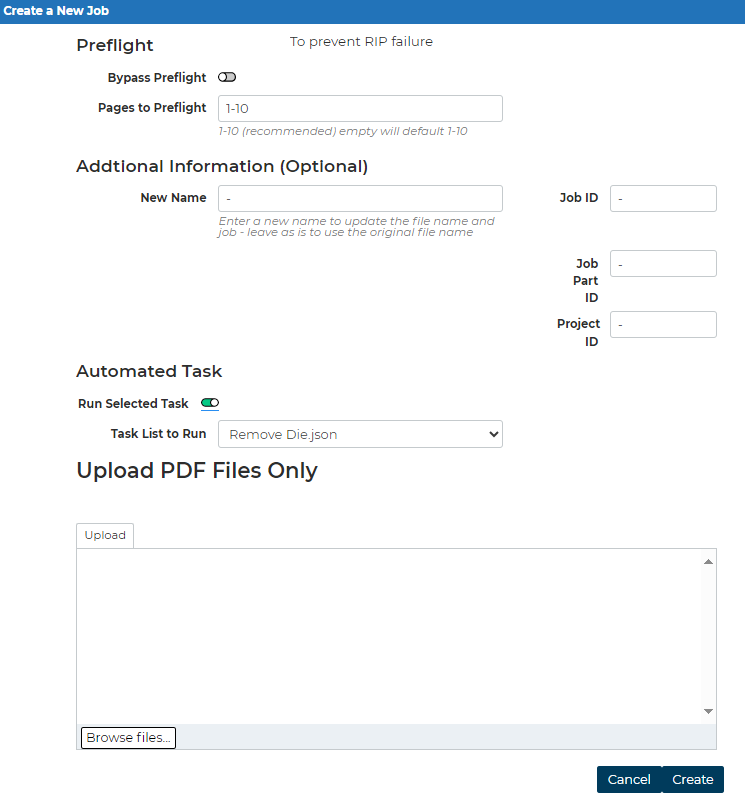
Automated Task > Run Selected Task :
-
When importing a PDF, you have the ability to browse and assign task steps from a Drop Down list, so this can be assigned to the imported job.
-
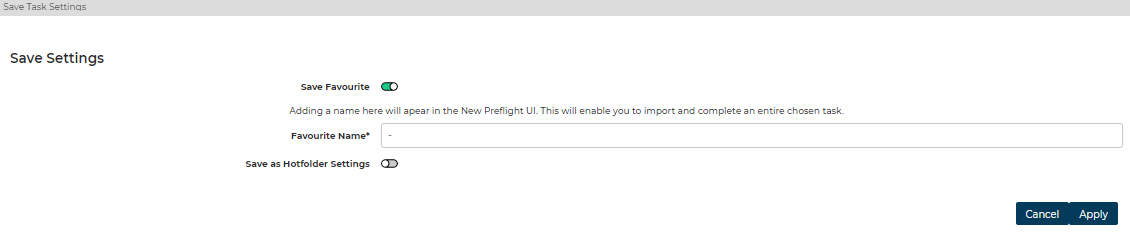
N.B Automated Tasks need to be saved 1st from the Job Task History Page to appear in the drop drop list
-
You can send multiple PDFs to be preflighted at the same time.
Click Create to add the jobs to the Preflight Queue.
The jobs remain in the Preflight Queue until the task is complete; they then move automatically to the File Preparation Queue.
JDF/JMF
You can also submit Job Definition Format (JDF) and Job Messaging Format (JMF) jobs.
From Preflight Queue Window, click New JDF Job, 
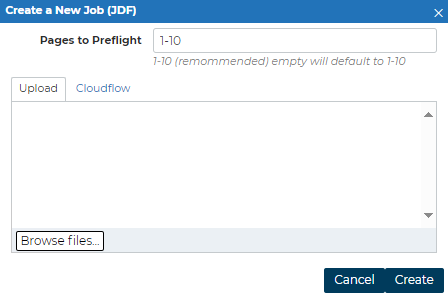
Use of JDF/JMF requires additional configuration; please contact your representative for further information.