
Job Task History (Live)
This is a filtered list of the Job Task History (all) tab.
The Job Task History (live) table contains the jobs that are still present in the File Preparation Queue, and the Job Sending Hold for QA Queue.
The purpose of this list is to provide a mechanism to store and manage the information of every job that has passed through the system.
This information could be used for:
-
Locating the job and the view information about the job
-
Retrieving the task settings performed on the job
-
Retrieving references from JDF/MIS to maintain traceability
-
Allowing the operator to save the settings in a separate location
-
Allowing the operator to back up/archive the files produced in a separate location
-
Allowing the reuse of the settings to be applied to other jobs

Top bar Action Buttons


Searching
The Title bar contains boxes that allow the table to be filtered. For example:
-
Name - Start typing and the filter is applied.
-
Complete Date - Two options are available:Sort in either ascending or descending order.Click Start filtering to filter by a date range.
-
Creation Date - Two options are available:Sort in either ascending or descending order.Click Start filtering to filter by a date range.
-
.... Other fields apply in a similar way.
Job Record


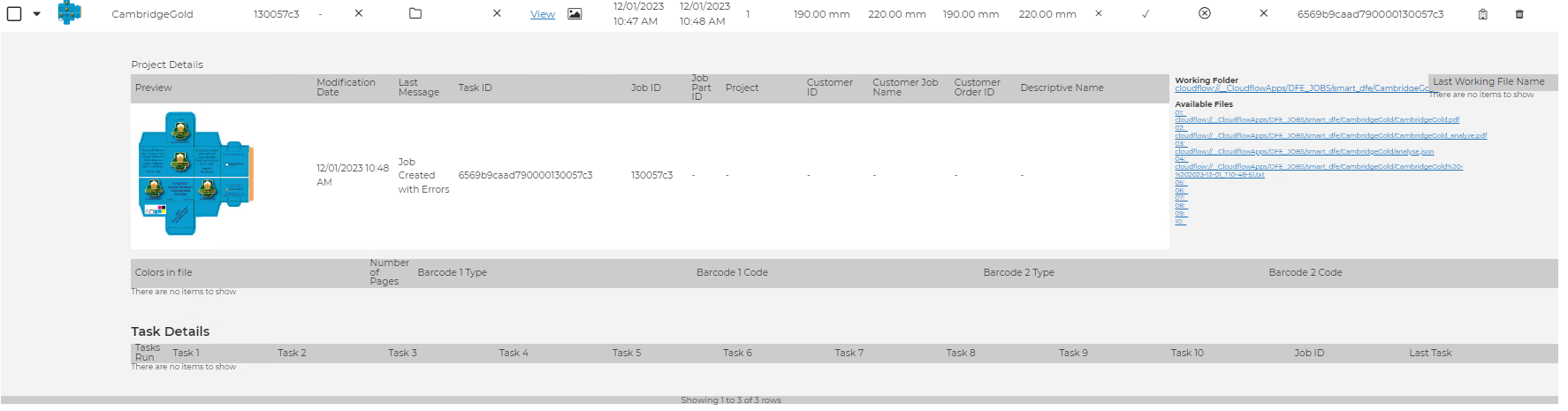
Name
-
Displays the current name of the job
Job ID
-
Displays the JDF Job reference from the MIS system for traceability
Job Part ID
-
Displays the JDF job part reference from the MIS for traceability
Settings
-
This button shows the current archive status of the settings; it has three states.
-
When pressed, the button performs a settings backup: No task have been run - Nothing to save Tasks have been run - Clicking this presents a dialog to save the settings. You can assign the setting to a Fave Task, Static Hotfolder or Dynamic Hotfolders.Task have been backed up - Clicking this presents a dialog to save the settings. You can assign the setting to a hotfolder.
File Archive
-
This button shows the state of the asset archive.
Pressing the button backs up the asset files (including the setting, if available). Large Empty folder Icon - No backups have been performed.Small folder Icon - Only Assets have been backed up; no tasks have been run so there are no settings to back up.Large Full Folder Icon - All assets have been backed up.Large Half Full Folder Icon - Settings have been backed up but no PDF assets have been archived.
Archiving Assets and settings to hot folders
When saving settings a dialogue box will open and there is an option "Save as Hotfolder Settings"
-
Off - Settings are saved to the default Archive folder
-
On - With this you can choose which ChainTask hotfolder to assign the settings to; choose 1-10.
ChainTasks are a collection of HotFolders. Any PDF file dropped in one is processed through preflight; automatically the task settings are applied.
HF ID
-
If a ChainTask hotfolder is associated with this job, the number appears in this column.
Run Tasks
-
This button has two states:No Task settings are saved.Task settings are saved.
If the state has been archived, clicking the button allows you to upload files to be processed as new jobs with the same saved settings.
View
-
Views the latest file.
Assets
This button is only recommended for advanced users.
-

Creation Date
-
This is the timestamp when the job was first submitted.
Complete Date
-
This is the timestamp when the last change was made.
Pages
-
This is the number of pages in a job.
MediaBox and TrimBox dimensions
-
This shows the two key boxes used to determine the size of the job to ensure it does not exceed the imaginable area
Sent to Print Queue
-

-

Sent - Aborted
-
Indicates whether the job has finished processing
Preflight State
-

-

-

-

-

-

Task Run
-
-

ID
-
Unique internal database ID for this record
Delete
-
