
📌 Overview
On Windows, we recommend the use of Visual Studio and the SWIG C# NuGet package. The following steps describe how to do this, using the makoconvertercsharp.cs source that is located alongside the NuGet package, in the SWIG folder of the Mako distribution.
Brief
-
Create a C# console application in Visual Studio
-
Load the NuGet package
-
Set the platform target to x64
-
Paste all the code from makoconverter.cs into the console application, replacing what was there
-
Build the solution
Create a C# console application
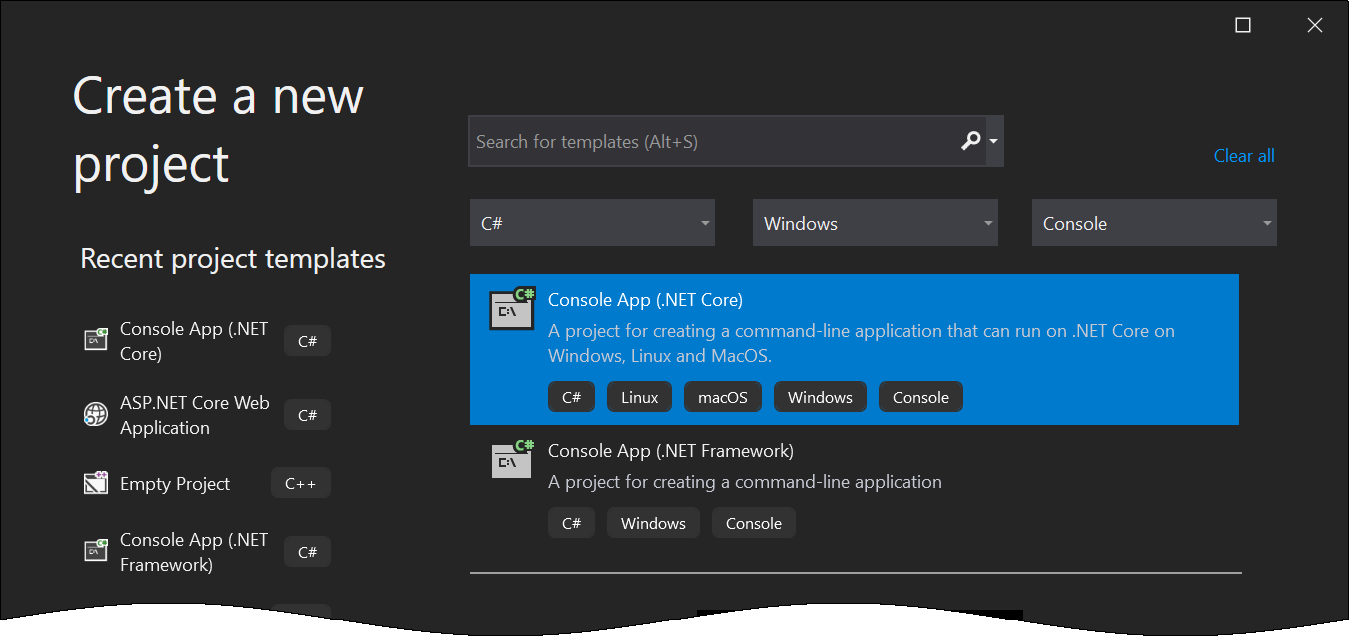
Simply choose from the available .NET templates, or alternatively add one of our custom Mako project templates. We recommend .NET Core as it supports later versions of C#, but .NET Framework is also supported.
This is from VS2019:
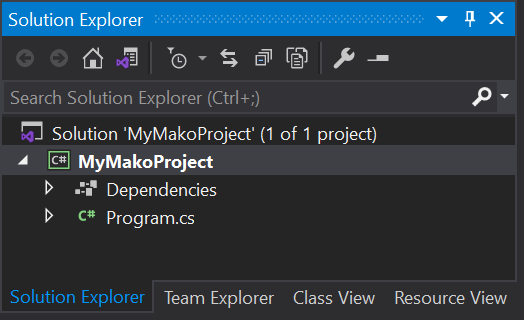
Give it a name of your choice. The example MyMakoProject looks like this in the Solution Explorer:
Load the NuGet package into the project
Obtain the NuGet package
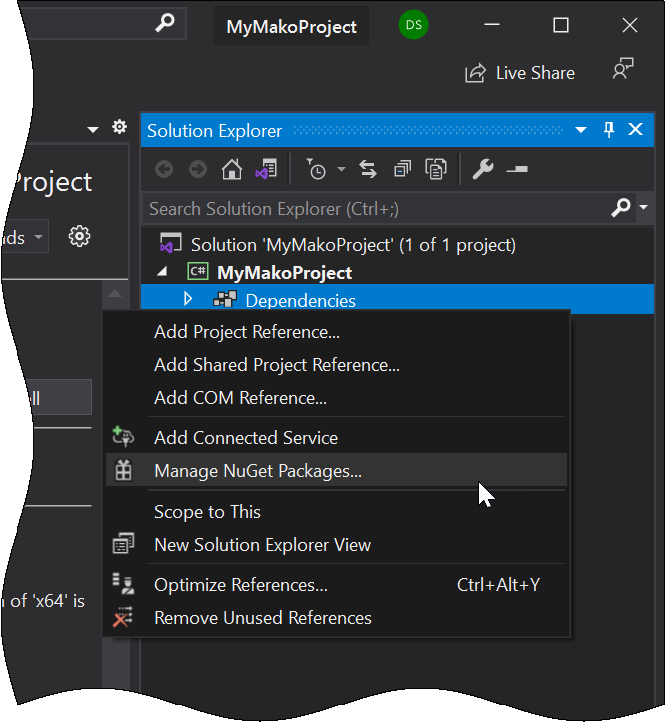
These are found in the Mako SDK release folder, accessible via your dedicated Global Graphics FTP account. (NOTE: Currently these packages are not available from a NuGet-compatible online source. Use the following instructions to use them with Visual Studio.) To install it from a local source, refer to the C++ NuGet instructions to find out how. Otherwise, open the package manager by choosing "Manage NuGet Packages" after right-clicking MyMakoProject or Dependencies below it. |
|
You can now browse for the NuGet package you wish to install. For example:
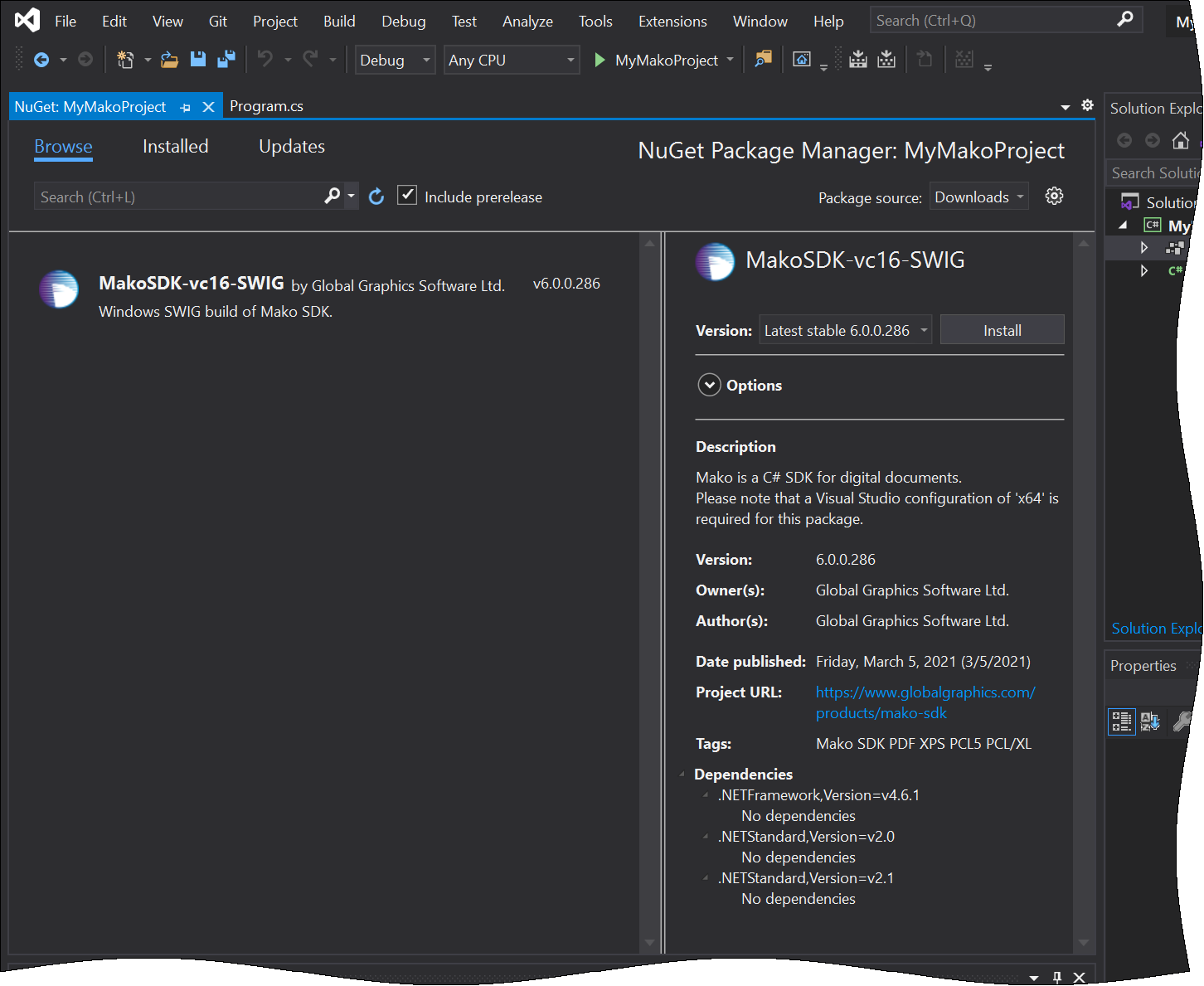
To install, select a package and click Install.
Set the target platform to x64
The underlying libraries that support the C# interface to Mako are x64 DLLs. This means the default platform target for a managed project, AnyCPU, is not suitable. (You can build, but an exception is thrown unless you have unchecked Prefer 32-bit.) We recommend that you set the platform target to x64 explicitly.
To do this, set the Platform target in the project properties to x64, as shown below:
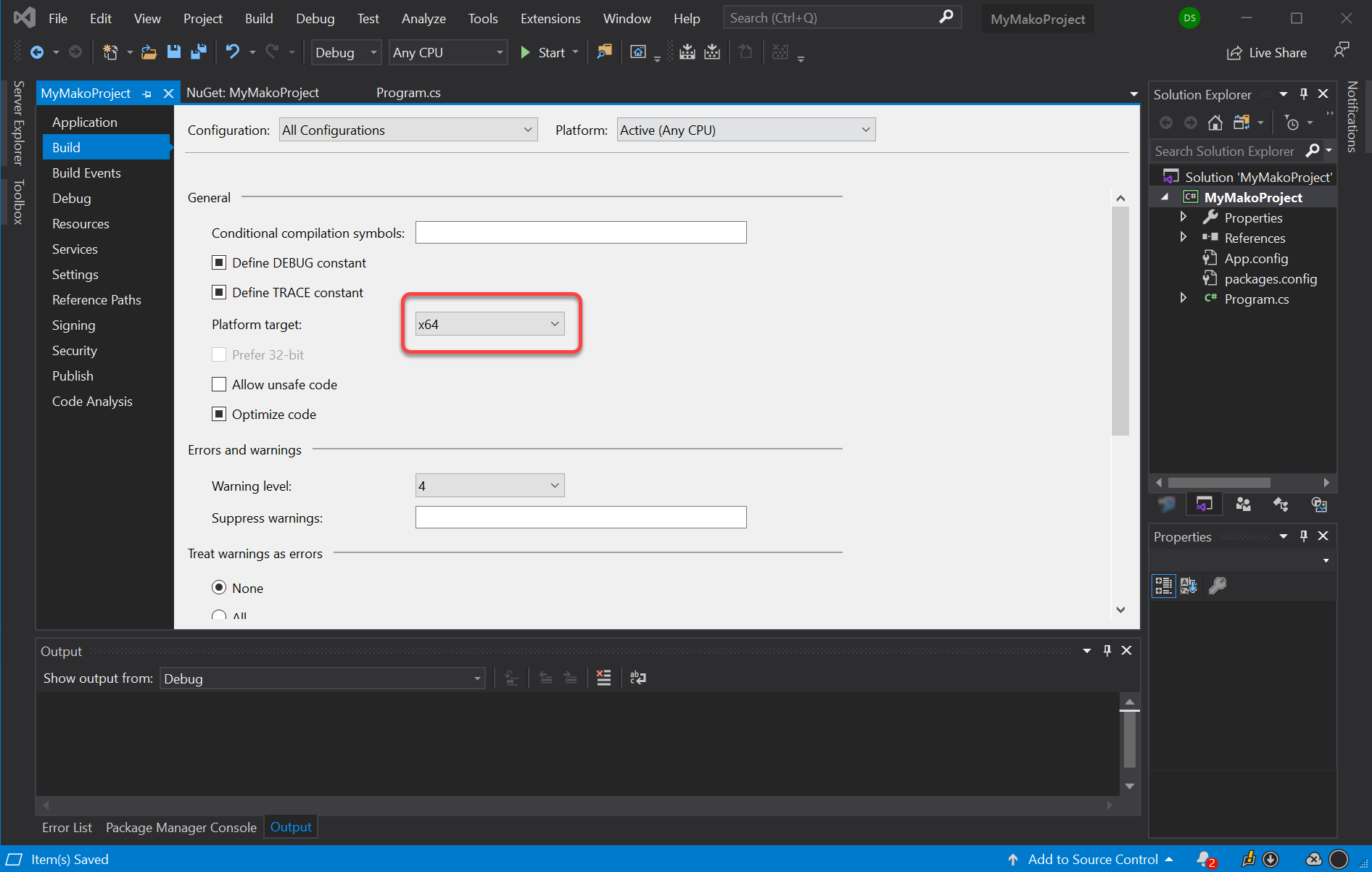
Alternatively, you can add an x64 configuration as described here.
Paste in some code
-
Using your favorite text editor, find some C# sample code and copy it.
-
Open the source file in your new project, and replace its contents (Ctrl-A, Ctrl-V).
Build
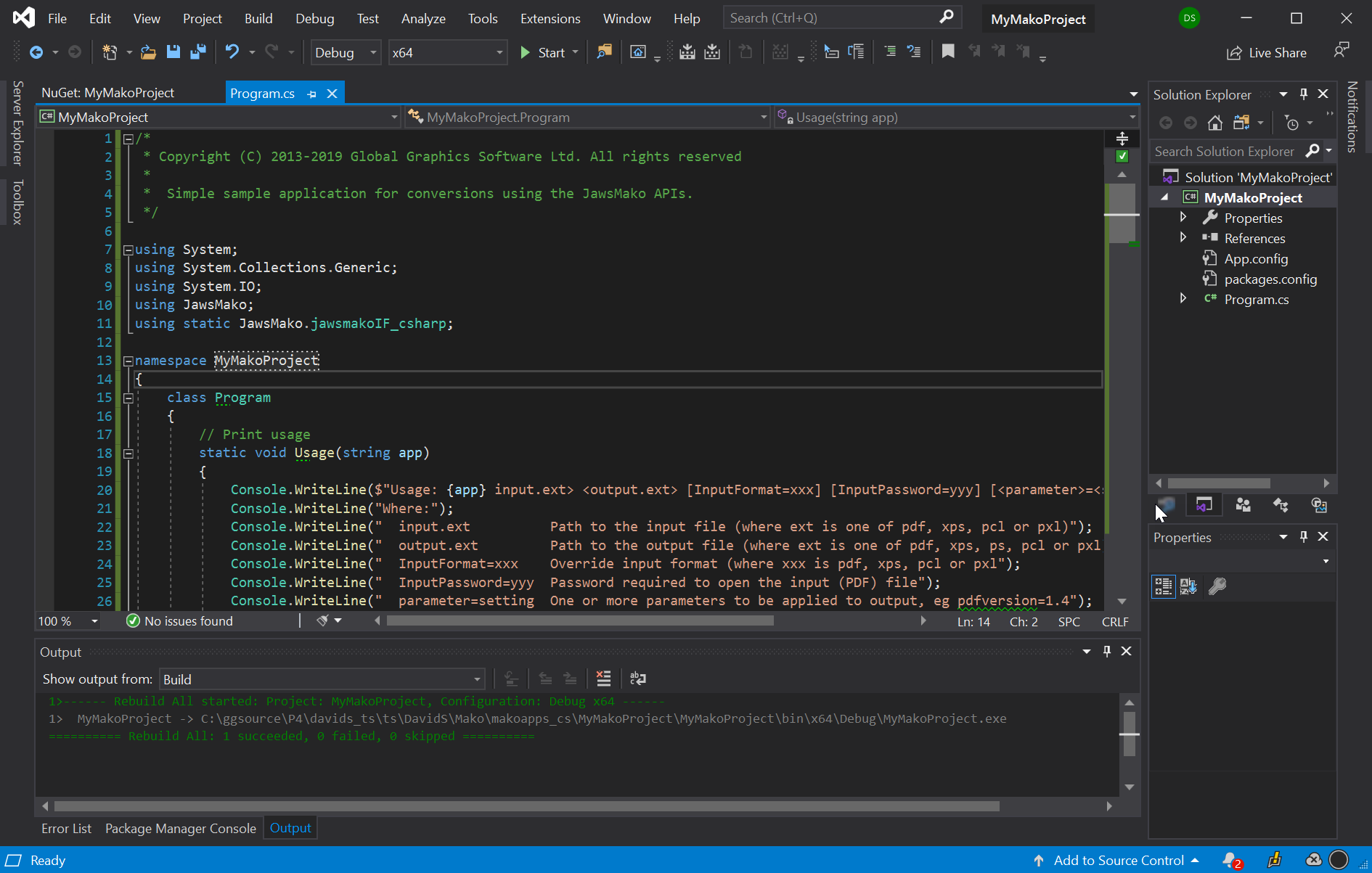
Finally, build the solution (Ctrl-Shift-B). The runtime component (jawsmakoIF_csharp.dll) is copied automatically to the output folder.
Downloads
For sample code that you can use with the C#, see the Samples section.